Web status UI
The web status UI is a browser dashboard you open while the sign is running. By default it’s read-only, with token-gated editing (the config editor and the plugin Store). It shows you what the sign is displaying right now, lets you inspect the live config with secrets redacted, validate a config against the real sign before deploying it, and browse the fonts, images, and emoji available in your config directory.
What you’ll need: a running led-ticker sign set up from Getting started. No additional accounts, API keys, or hardware changes required.
What’s on the dashboard
Section titled “What’s on the dashboard”Five tabs, one URL (http://<pi>:8080):
| Tab | What it shows |
|---|---|
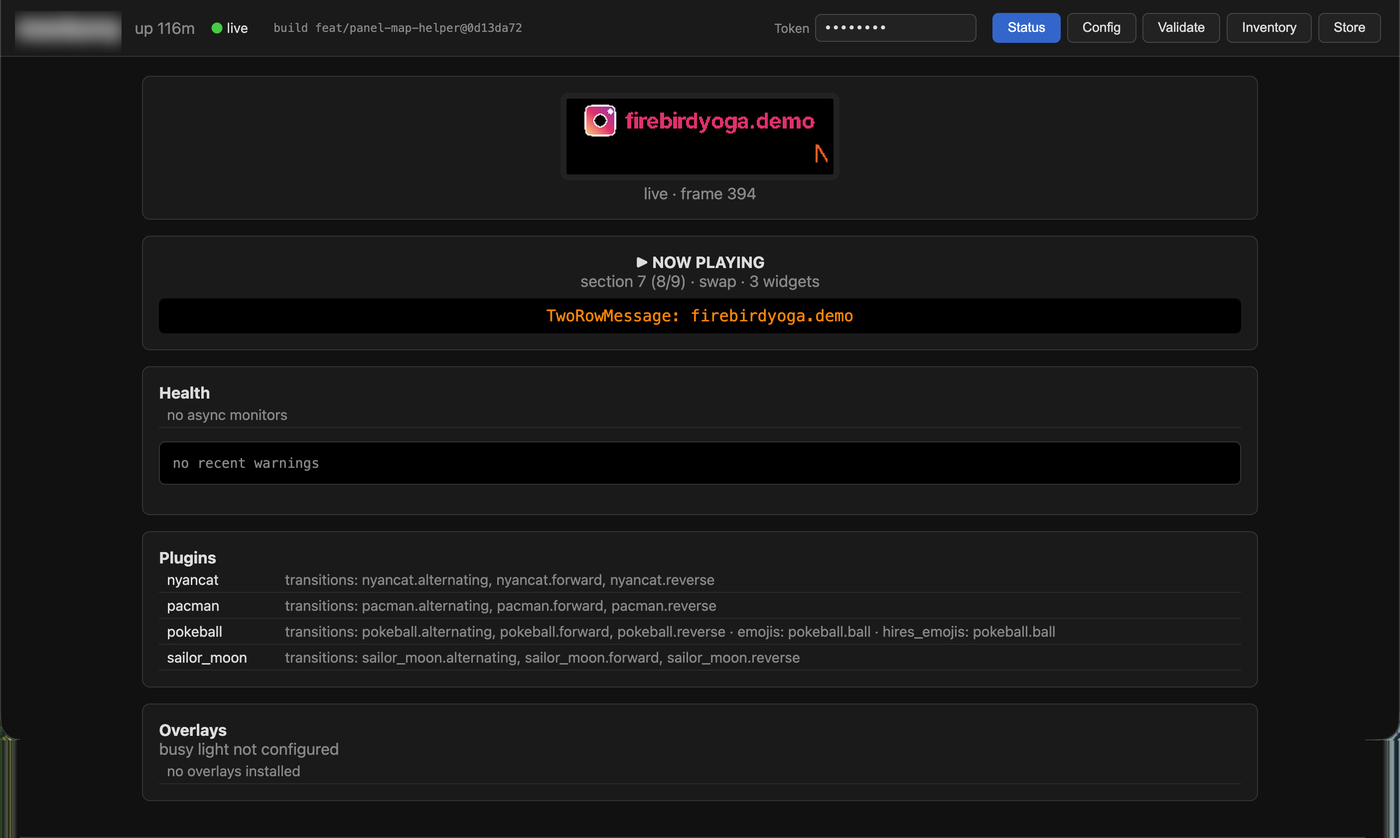
| Status | The widget currently playing, how long it has been on screen, section health, loaded plugins, and a stale/missing indicator when the display process is down. |
| Config | The full config.toml the display process loaded, with every value that looks like a secret replaced by •••. Safe to screenshot and share when troubleshooting. |
| Validate | Validate a file from the config directory against the real sign, or paste a candidate config into the text area and click Validate. |
| Inventory | Fonts, image/gif assets, and emoji slugs found in the config directory. |
| Store | Browse and install catalog plugins. Browsing is open; installing or removing requires a token. |
Validate tab
Section titled “Validate tab”The Validate tab offers two paths:
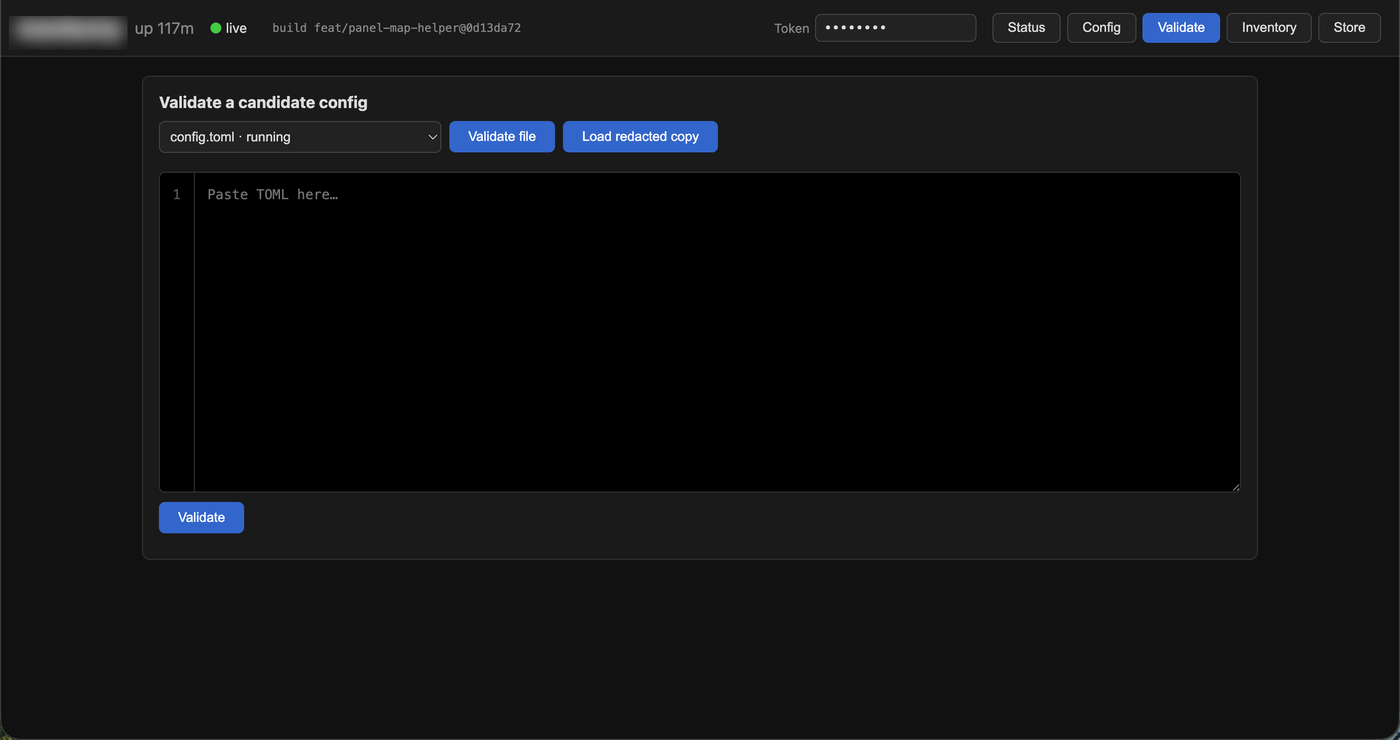
- Validate file — a dropdown lists every
.tomlin the config directory. Select one and click Validate file to runled-ticker validateserver-side on the real file. Validation happens on the Pi, so results are exact and secrets never leave the device. - Load redacted copy — fills the text area with the selected file’s content with secrets replaced by
•••, then shows a caveat that•••values may validate differently than the real file. Use this when you want to inspect or hand-edit the config before re-validating; use Validate file when you just need a pass/fail answer.
The text area is still there for pasting a config you haven’t saved to a file yet.
Inventory tab
Section titled “Inventory tab”The Inventory tab shows what the sidecar can see in the config directory (capped at 500 assets):
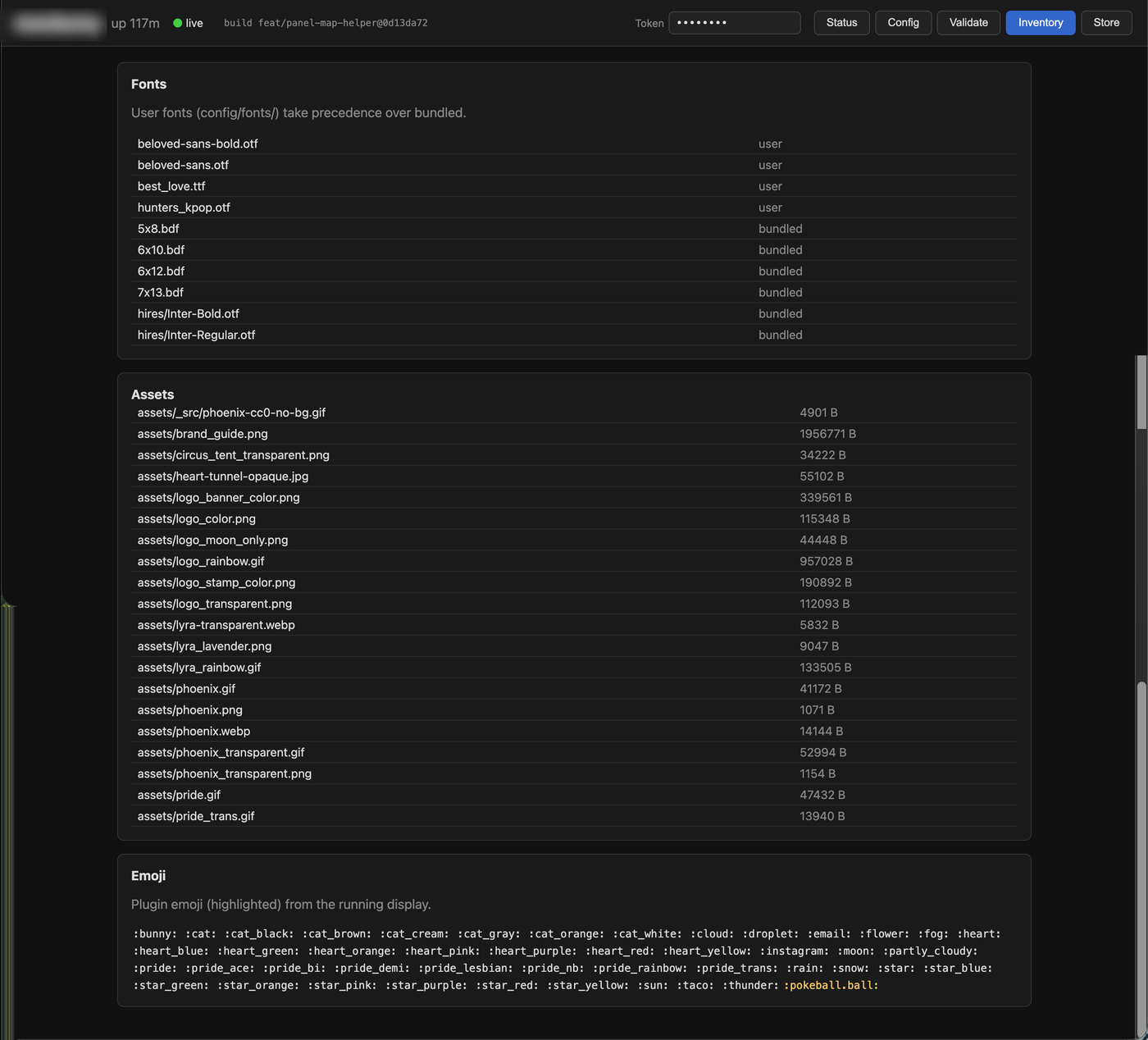
- Fonts — user fonts from
config/fonts/(which take precedence over bundled ones) and the bundled BDF and hires fonts included with led-ticker. - Assets — image and gif files (
config/, recursively) with their file size. - Emoji — core slugs and hires-only slugs baked into the installed package. Plugin emoji (such as
:baseball.ball:) appear only while the display process is running — the sidecar itself never loads plugins, so the names come fromstatus.jsonpublished by the display process.
Store tab
Section titled “Store tab”The Store tab lists every plugin in the catalog and shows each one’s current state — whether it is active, queued for the next restart, or available to install. Click Install to add a plugin or Remove to drop one.
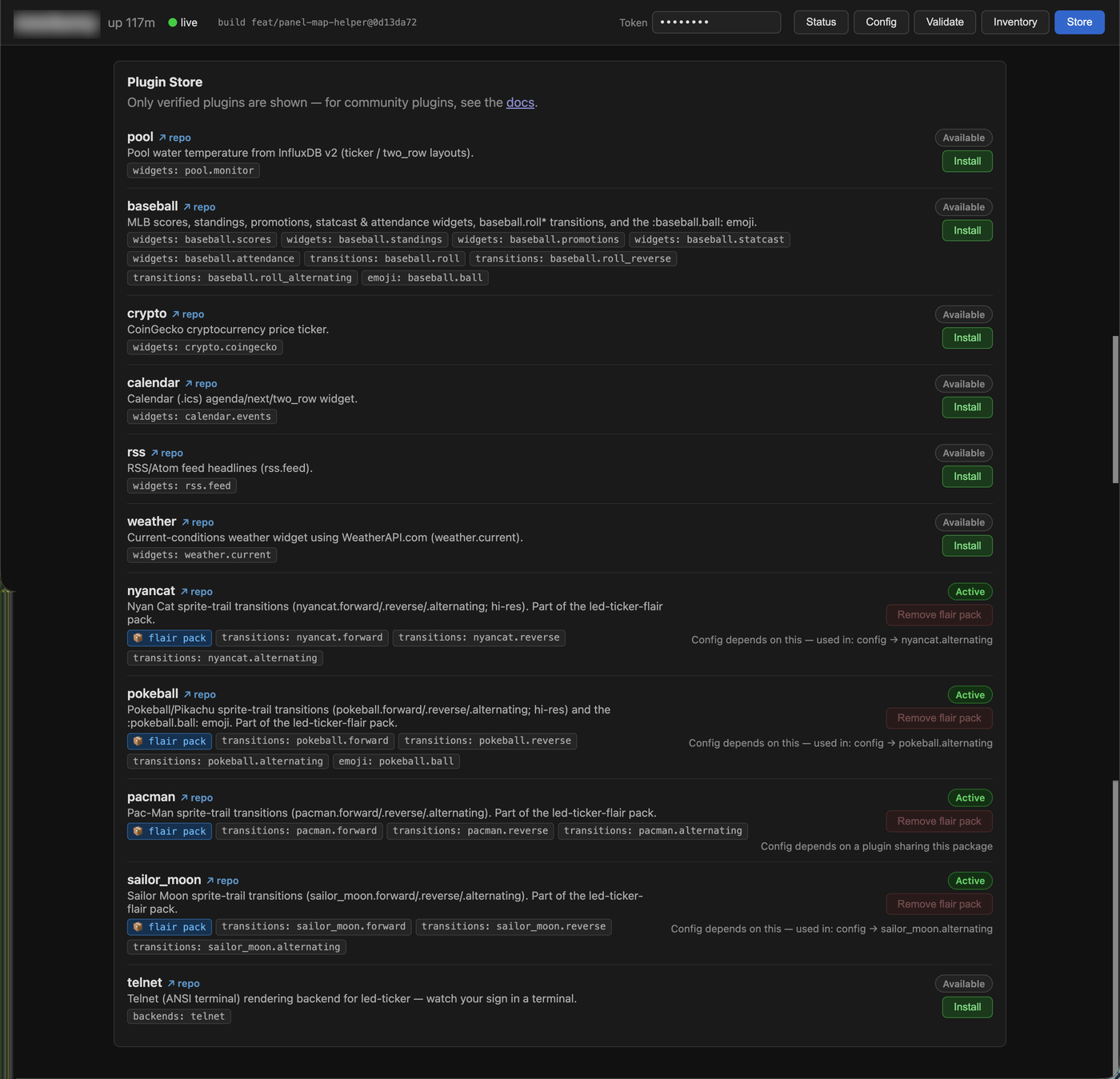
A token is required to install or remove. Browsing the Store is open, but any write action returns 401 without a valid token. Set LED_TICKER_WEB_TOKEN in your .env (see Auth below).
Changes take effect on the next restart — the same as editing config/requirements-plugins.txt by hand. The Store writes the manifest for you and shows a “pending restart” banner once there is a queued change. If allow_restart = true is set in your [web] block, the banner also shows a Restart to apply button — click it and the display process exits cleanly, then Docker’s restart: unless-stopped brings it back with the new plugins loaded. If allow_restart is not set, the banner shows a copyable command you can run yourself:
docker compose restartRemoval is blocked while your config still uses the plugin. If config.toml references any of the plugin’s widget or transition types, the Store shows which sections they appear in and links to the Config editor so you can remove them first. Once the config is clean, click Remove again and restart.
Catalog plugins only. The Store lists verified catalog plugins. Community plugins or plugins you are developing locally go in config/requirements-plugins.txt directly (see Installing a plugin).
Status tab — plugin detail
Section titled “Status tab — plugin detail”The Status tab’s Plugins card lists each loaded plugin’s registered widget, transition, and emoji names (e.g. widgets: baseball.scores, baseball.standings · emojis: baseball.ball). Display processes that predate v1.1 publish counts instead of names; the UI falls back to showing the raw count object in that case.
Status tab — Overlays
Section titled “Status tab — Overlays”The Status tab’s Overlays card shows what is compositing on top of the panel on every frame.
Busy light state — when [busy_light] is configured, the card shows:
- whether the dot is currently on (
● busy) or off (○ free) - the source (
fileorhttp) - how many seconds remain on the active TTL deadline (
clears in Ns), when one is armed
When no [busy_light] block is present in the config, the card shows “busy light not configured”.
Overlay roster — a table listing every overlay registered with the engine at startup, with its name and whether it comes from core (busy_light) or a plugin (the plugin’s namespace, e.g. acme.clock). The roster is static: it reflects what was loaded when the display process started and does not change while it is running.
The Overlays card is read-only. The busy light’s on/off state is controlled through the [busy_light] TOML config and, for source = "http", through the /busy HTTP route the display process exposes — not through this dashboard. See Busy light for the full control surface.
Status tab — Monitors
Section titled “Status tab — Monitors”The Status tab’s Monitors panel tracks the health of every live-data source and data widget running on the sign — automatically, with nothing to configure beyond adding the source or plugin in the first place.
What it covers. Two kinds of live-data workers show up here:
- Polled
[[source]]value-tokens — sources like:weather.nyc:or:crypto.btc:that fetch their value from an API on a repeating interval (see Value tokens). - Data widgets — plugin widgets that pull data in the background (weather, RSS, crypto, calendar, sports, pool, and others).
The roll-up badge. Next to the “Health” heading in the Monitors panel, a small colored badge summarizes the worst state across all monitors at a glance — red for error, amber for stale, green for all-ok.
Per-monitor states. Each row shows the source or widget name, its type (the source or widget class, like weather.current or rss.feed), and its current value (the last resolved data, like 72°F Sunny or 5 items). The type appears as muted text below the name so you can tell what a monitor is; the value confirms it’s returning real data. Each row also shows one of four states:
| State | Meaning |
|---|---|
| ok | Updated within its expected interval — data is fresh. |
| error | The last fetch failed. The row shows the error message, a consecutive-failure count, and a “retrying in …” countdown to the next attempt. |
| stale | No successful update for well past the expected interval — the fetch task may be wedged. Stale differs from error: there is no error message because the fetch never returned, not even with a failure. |
| waiting | The source has not completed its first fetch yet. This appears briefly at startup. |
“Sign not reporting.” If the display process stops publishing its status snapshot, all monitor rows grey out and a warning appears at the top of the panel: “sign not reporting — monitor state may be stale.” This prevents a frozen snapshot from being mistaken for a healthy sign. Once the display process resumes, the warning clears automatically.
Status tab — snapshot fields
Section titled “Status tab — snapshot fields”The display process publishes a status.json file (schema version 9) containing the state of the running display. The web UI renders this snapshot; advanced users and integrations can also read it directly. Notable fields:
failed_plugins — plugins that failed to load at startup (load-time errors). Each entry lists the plugin namespace and the exception message. A failed plugin’s widgets, transitions, and emoji are unavailable. Restart the display process with the plugin fixed or removed to recover.
disabled_widgets — widgets the render circuit breaker has disabled during this run. If a widget’s draw()/play() raises an exception at render time, it is caught, dropped from rotation, and listed here as { "widget": "<class>", "error": "<exception>" }. The same circuit breaker also guards transition compositing, so a widget that raises during a transition is caught and dropped — the transition completes with the bad widget blank. The panel keeps running and moves on to the next widget. This is the render-time counterpart of failed_plugins (load-time). Restart to retry a disabled widget.
last_reload — the outcome of the most recent config hot-reload attempt: { ok, at, error, restart_required }. ok is true when the reload succeeded and false when it was rejected. at is an ISO-8601 timestamp. On failure, error contains the validation error verbatim (the same message led-ticker validate would print) so you can act on it without tailing logs. restart_required is a list of section names — display, busy_light, plugins, web — whose changes were detected but cannot take effect until you restart the display process. The card is hidden until the first reload attempt after startup. See Config hot-reload for full details.
config_validation — the result of validating the config once at startup: { at, errors, warnings }, where at is an ISO-8601 timestamp and errors/warnings are lists of { rule, location, message, fix } (the same checks led-ticker validate runs). The sign always boots — an invalid widget is skipped and an invalid transition falls back to a cut — so this is the up-front diagnosis, not a boot failure. The Config validation card on the Status tab surfaces these issues and stays hidden when the config is clean. Reloads report through last_reload, not this field.
Status tab — live preview
Section titled “Status tab — live preview”The Status tab includes a live preview panel that shows the actual content on the sign — the same pixels the panel is displaying, including the busy-light dot if one is configured. It updates at roughly 5 fps.
Zero cost when nobody is watching. The preview mirror is demand-driven: it wakes up when the page loads and polls for a new frame, and goes to sleep automatically around 10 seconds after the browser tab stops polling (navigating away, closing the tab, or the page going to the background). While asleep the display process does no extra work and writes nothing to disk for the preview. When you come back, there is a brief “waking the preview…” message while the mirror reconnects — typically a couple of seconds before the first frame appears.
Scale-1 (smallsign) note. On a 160×16 smallsign the preview pixel grid is very small. The browser scales it up to a readable size, but individual pixels are large blocks. Single-pixel-tall BDF text at the panel’s native resolution can be hard to read in the preview — this is expected and not a rendering error.
If the preview is stuck on “waking the preview…”:
- Confirm the display process is running with a
[web]block inconfig.toml(see Enabling it below). A process started before[web]was added needs a restart. - Check that the
ticker-statusnamed volume is shared between the display process and the sidecar — the preview frame file lands in/run/led-ticker/inside both containers. - If the sidecar and display process are on different versions, the display process may predate the live preview feature. Rebuild or reinstall both to the same version.
Architecture
Section titled “Architecture”The dashboard is a separate sidecar process (led-ticker webui). It is unprivileged — no GPIO access, no API keys — and reads only config.toml and a status.json file the display process writes. Neither side needs the other to be up: if the display process crashes, the sidecar keeps serving (the Status tab shows a stale or missing indicator); if the sidecar is not running, the sign keeps displaying. Start order is irrelevant. The status.json path defaults to /run/led-ticker/status.json and is configurable via status_path in the [web] block.
Enabling it
Section titled “Enabling it”Add a [web] block to your config.toml. An empty block is valid and uses the defaults:
Minimal — all defaults
[web]# http_host = "0.0.0.0" # listen on all LAN interfaces (default)# http_port = 8080 # (default)# token = "" # open — see Auth belowPresence of the block enables status publishing in the display process. Absence (no [web] block at all) disables the feature entirely — existing configs without the block are unaffected.
Docker
Section titled “Docker”The compose.yaml defines the webui service behind the webui compose profile, so a plain docker compose up -d changes nothing. Enabling the dashboard takes two steps: add the [web] block to config.toml, then start with the profile on. Both are needed — the profile starts the sidecar, and the block tells the display process to publish (and the sidecar exits without it).
# The webui service as it appears in compose.yaml (note the profile):webui: profiles: ["webui"] image: led-ticker build: . container_name: led-ticker-webui restart: unless-stopped command: ["led-ticker", "webui", "--config", "/code/config/config.toml"] network_mode: host volumes: - ./config:/code/config:ro - ticker-status:/run/led-tickerThe ticker-status named volume is the shared channel: the display process writes status.json there; the sidecar reads it. Both services mount the same volume so they work correctly even when one is restarted independently.
Then bring it up:
COMPOSE_PROFILES=webui docker compose up -d# or equivalently: docker compose --profile webui up -d# Tip: put COMPOSE_PROFILES=webui in the .env next to compose.yaml to make it sticky.Open http://<pi-hostname>.local:8080 in a browser.
By default the dashboard is open — appropriate for a trusted home LAN. To add a shared token, set LED_TICKER_WEB_TOKEN in your .env:
LED_TICKER_WEB_TOKEN=change-meThe display process and sidecar both read this environment variable at startup. The token field in [web] is a fallback for setups that cannot use .env — it works, but logs a warning that secrets belong in the environment, not the config file.
With a token set, every request must include it, either as a header or a query parameter:
# Header form (preferred — token does not appear in server logs)curl -H "X-Web-Token: change-me" http://pi:8080/api/status
# Query-param form (convenient for browser access)http://pi:8080/?token=change-me
A missing or wrong token returns 401. The query-param form works in a browser address bar, so bookmarking http://pi:8080/?token=… gives you one-click access.
Secrets are always redacted from the Config tab regardless of whether auth is enabled or what token was used. The redaction runs in the sidecar, not in the browser.
For anything beyond your home LAN — exposing the dashboard over the internet — put a reverse proxy (nginx, Caddy) in front and let the proxy handle TLS and stronger auth. The sidecar itself is a LAN-appliance; it has no TLS support.
Editing the config
Section titled “Editing the config”The Config tab doubles as an editor. Open it, make your changes, and click Save.
A token is required to save. Set LED_TICKER_WEB_TOKEN in your .env (see Auth above). With no token configured, reads stay open but the editor is read-only — Save returns 403. Once a token is set, it gates every request (reads and writes alike).
What Save does, in order:
- Validates the submitted TOML — invalid TOML or a config that fails
led-ticker validateis rejected and nothing is written. - Conflict-checks against the file on disk. If someone else saved the file since you loaded it, Save returns 409 and you can reload before retrying.
- Backs up the current file to
config.toml.bakin the same directory. - Writes the new content atomically (write to a temp file, then rename into place).
The Config tab reports “applied live” when the running display picked up the change via hot-reload, or “restart required for …” listing the sections (e.g. display, plugins) whose changes need a process restart to take effect.
Deploy note. In compose.yaml the webui service mounts the config directory :rw (the display service still mounts it :ro) — this is what lets the editor write config.toml from inside the container.
Restarting the display process
Section titled “Restarting the display process”Some config changes — adding a plugin, changing [display] settings, toggling [busy_light] — cannot be applied by hot-reload alone. They require a full restart of the display process.
The web UI can trigger that restart for you. When allow_restart = true is set in your [web] block, a Restart to apply button appears in the Config tab’s “restart required” notice (after a save that needs a restart) and in the Store tab’s pending-restart banner (when a plugin install or remove is queued). Clicking it:
- Confirms the action (a brief in-button countdown lets you cancel).
- Posts to
/api/restart— a token must be configured and supplied (the same token that gates config saves); with no token configured the endpoint returns 403. - The display process detects the signal on its next loop pass and exits cleanly (
sys.exit(0)). - Docker’s
restart: unless-stoppedbrings the display back automatically.
The panel goes dark for roughly 5–10 seconds while the process exits and restarts. This is expected — it is not a reboot of the Pi, and the sign resumes where it left off once the display process is back.
allow_restart is off by default. Enable it by adding the field to your [web] block:
Enabling the restart button
[web]allow_restart = true # enables the Restart to apply button in the web UIThe config/config.example.toml shipped with the project sets allow_restart = true in its commented-out [web] block — uncomment the whole block to get the button alongside the other defaults.
What it does not do
Section titled “What it does not do”- No Pi reboot.
- No brightness control.
Which build is deployed?
Section titled “Which build is deployed?”The dashboard header shows the deployed build, as branch@sha. Use it to confirm both containers are running the code you expect. It resolves to the first of: the ref stamped into the Docker image at build time (make update / make build compute it and pass it in), or — for a non-Docker install running from a source checkout (local dev) — the ref read from Git at runtime.
build unknown— neither applied: the image wasn’t built throughmake update(a baredocker compose builddoesn’t stamp the commit), and it isn’t running from a Git checkout. Deploy withmake updateto stamp it. The sign still runs correctly;unknownis a label, not an error.⚠ webui build …— the webui sidecar is on a different build than the display process. This can happen when only one service is restarted without rebuilding. Runmake updateto rebuild and recreate the running services (the webui sidecar is included when its profile is enabled).
Troubleshooting
Section titled “Troubleshooting”The page doesn’t load at all (connection refused) — The sidecar isn’t running. On Docker, the webui service only starts when the webui compose profile is enabled — check docker compose ps; if the container is absent, start with COMPOSE_PROFILES=webui docker compose up -d. If the container exists but is restarting, check docker compose logs webui — a missing [web] block in config.toml makes the subcommand exit with a message naming the fix.
“Status: missing” on the Status tab — The display process has not written status.json yet. Confirm the display process is running (docker compose ps) and that both processes share the same status_path (default /run/led-ticker/status.json). The directory /run/led-ticker/ is created by the display process on startup — if the display process has never started, the directory does not exist yet.
“engine stalled?” on the live indicator — The display process is running (status keeps publishing) but the render loop has stopped swapping frames. This is rare; check docker compose logs led-ticker for a stuck widget or transition, and restart the display service.
“Status: stale” on the Status tab — The display process wrote a status file but has not updated it recently. This usually means the process crashed or was stopped. Check docker compose logs led-ticker.
Browser shows nothing / 401 — A token is set in [web]. Add ?token=<your-token> to the URL, or configure your browser extension / bookmark with the X-Web-Token header.
Sidecar binds a port already in use — The [web] sidecar defaults to 8080 and the [busy_light] HTTP source defaults to 8081, so they don’t collide out of the box. If you override either to put both on the same port, one will fail to bind — give them distinct ports.